
How to connect Storyous to Rewardly with a code: step by step
How to connect your Storyous till to a Rewardly loyalty program with a code, no Storyous password needed: what to prepare, steps, menu, locations and tests.
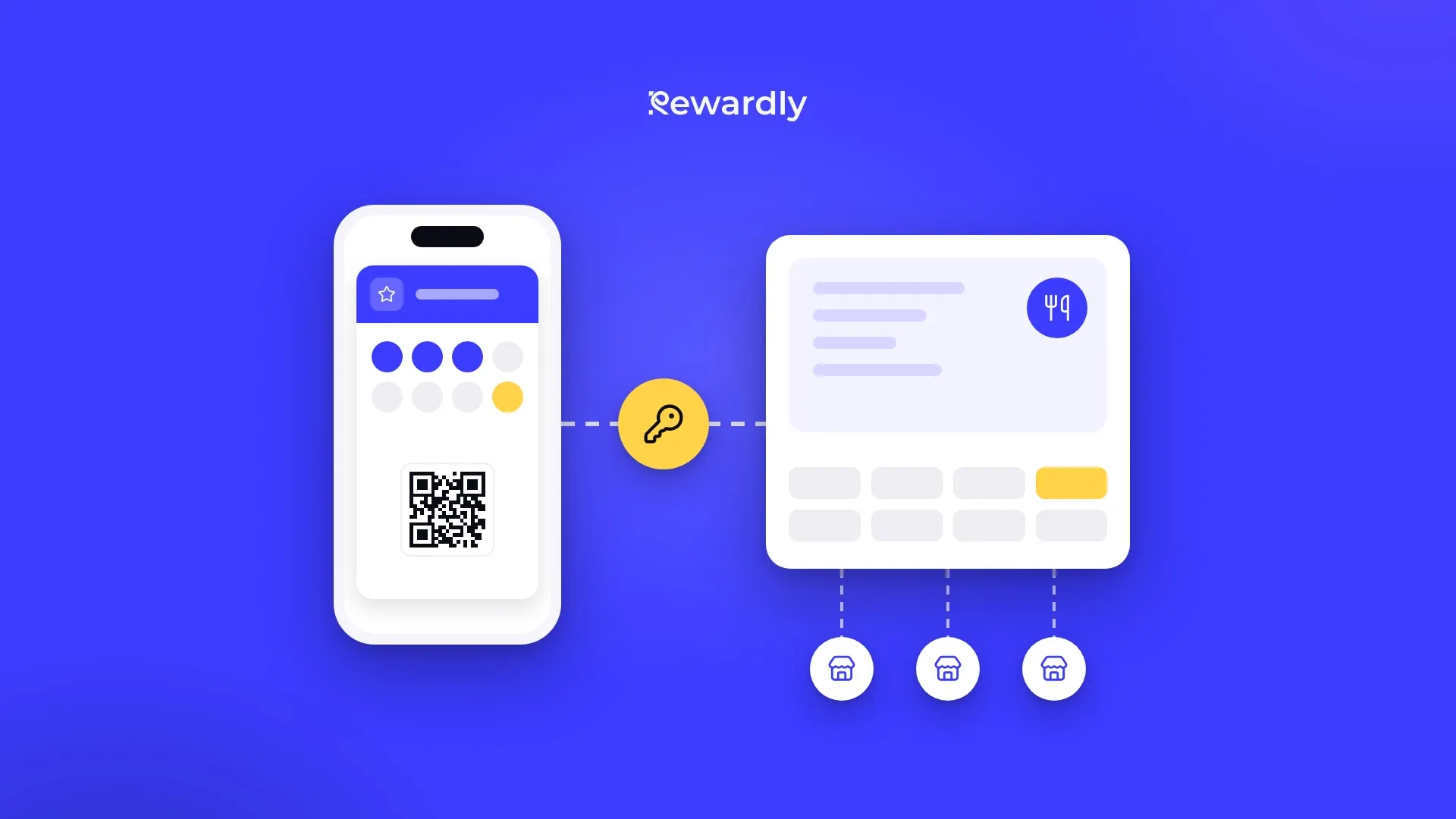
If you have a Storyous till, you connect your Rewardly loyalty program to it with a code. You do not give anyone your Storyous password or API key. You create the code in Rewardly and enter it in the Storyous settings.
In this article you will find what to prepare, how to proceed, what happens to your locations and menu, and what to test right after connecting.
What the connection gives you
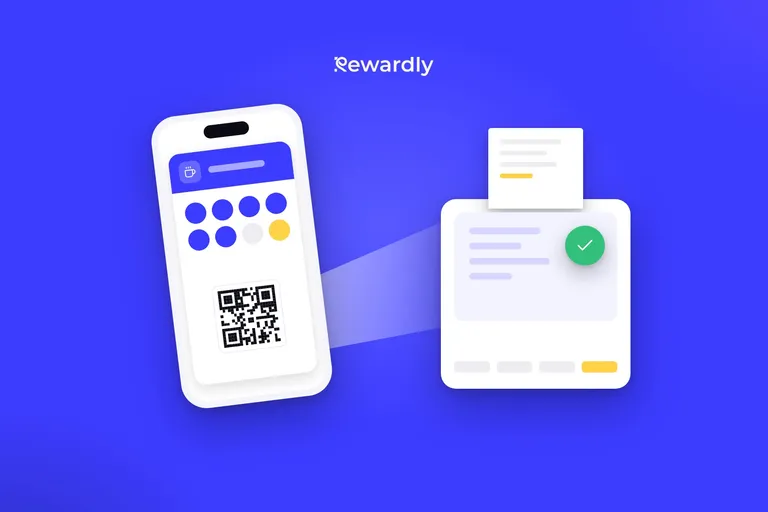
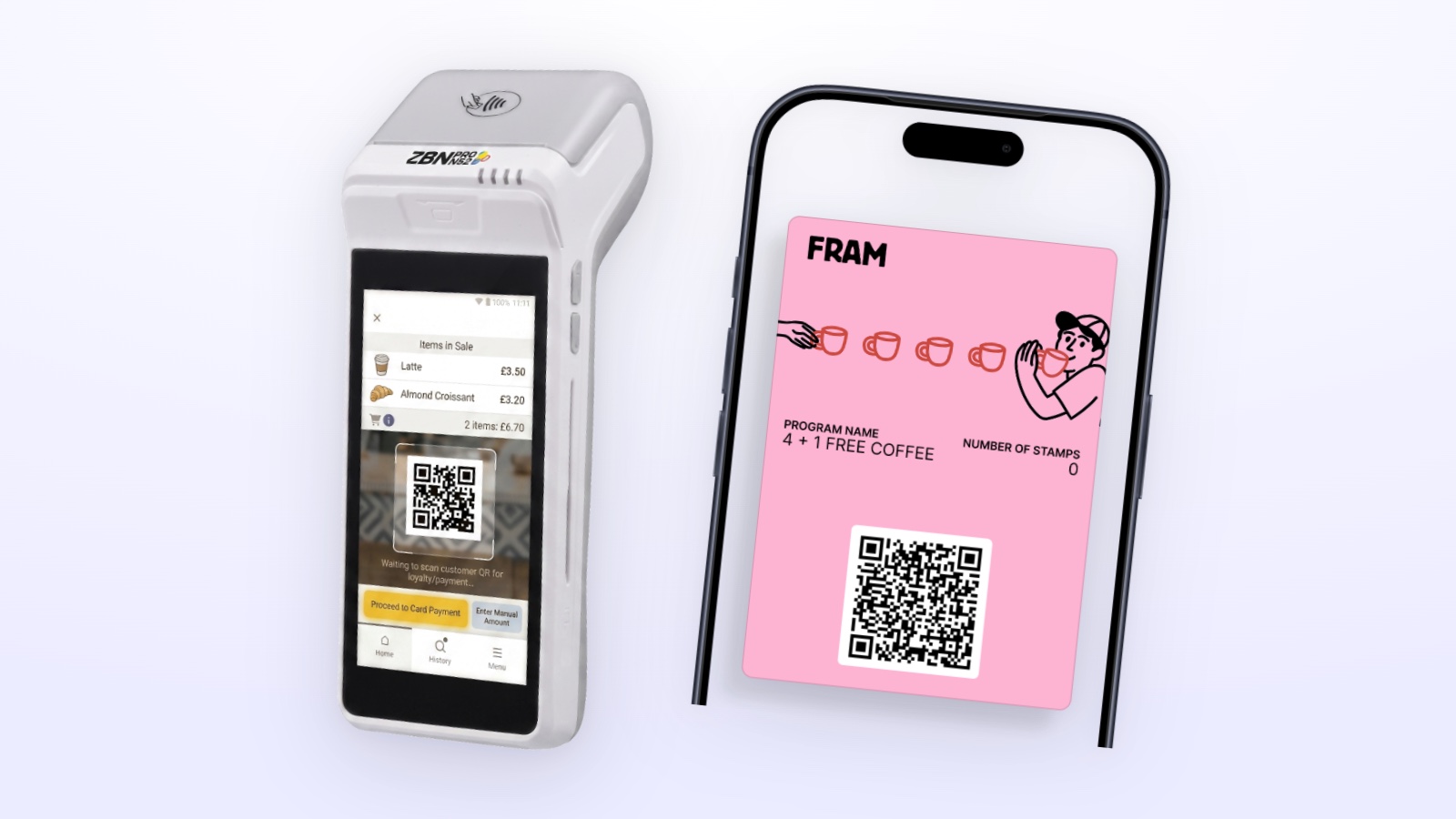
The waiter scans the customer's Rewardly card, for example the QR code from Apple Wallet or Google Wallet, and Storyous gets an offer for the open bill from Rewardly. The waiter sees the customer's first name, their progress in stamps and points, what this purchase will earn and the rewards and credit they can use. After payment Rewardly adds points or stamps based on the amount the customer actually paid.
Nothing is stored in Storyous. With every scan the till reads the current status from Rewardly. For an overview of features, see the Storyous integration page.
What to prepare
- The Advanced plan or higher. The POS integration is in the Advanced plan and higher.
- A Storyous account where the Rewardly loyalty feature can be switched on. The feature is switched on for each location separately. If you do not see it in your account, write to us.
- Access to the Storyous settings. The code is entered in Storyous, not in Rewardly.
- The project owner role in Rewardly. Connecting, updating the menu and changing the integration settings are done by the project owner.
- Customers with a Rewardly card. The till does not create a new member. The customer adds the card in advance, for example by scanning a QR code at the counter. To see how this works, visit the how it works page.
Step by step
- Open the Storyous integration in Rewardly. In the project settings go to integrations and choose Storyous.
- Create a connection code. Rewardly shows a code that starts with the word rewardly. Copy it.
- Enter the code in the Storyous settings. In the Storyous settings switch on the Rewardly loyalty feature for every location you want to connect, and enter the code.
- Complete the connection in Rewardly. Go back to Rewardly and confirm completing the connection. Rewardly checks in Storyous which locations have the feature switched on with your code. If Storyous does not report it yet, the page lets you know and you try again. Once the connection succeeds, you see how many locations were connected.
- Check the list of locations. For each location you see the connection status, the number of menu items or the status of loading the menu, and the Rewardly location it belongs to.
- Decide about credit. If your program works with credit or cashback, Rewardly pre fills it on the bill. You can switch off automatic use, and then nothing is pre filled. The waiter can always lower or reject the credit.
More locations and more Storyous accounts
The same code works for more locations. The code is not used up. When you later switch on the Rewardly feature at another location with the same code, it is connected the next time you complete the connection. A location that is already connected is not duplicated.
Another Storyous account needs a new code. When adding locations in Rewardly you create a new code, enter it in the second Storyous account and complete the connection. The second account is added to the same Storyous integration in Rewardly.
Every location gets its own location in Rewardly. Each Storyous location has its own connection, and Rewardly automatically creates a location with the same name for it. If you already have the location in Rewardly, you can assign it instead of a new one. You then see the results of your loyalty program by location.
Menu: when it is loaded
Rewardly loads the menu from Storyous: products, categories and nested categories, prices, EAN codes, labels and images. Your program rules can then target specific products and categories, for example an extra stamp for desserts.
The menu is loaded in three cases:
- when you connect,
- every night,
- when you start a menu update in Rewardly.
The connection itself does not switch on instant updates for every change in Storyous. Storyous has to switch them on. Until it does, start an update manually after a bigger menu change or wait for the nightly load.
What to test after connecting
- Location status. Every location should have a working connection and a loaded menu. You can also test the connection to the Storyous account.
- A test purchase with your own card. Add a Rewardly card to your phone and scan it on an open bill. The till should show your first name, your progress in stamps or points and what the purchase will earn. After payment, check in Rewardly that the values were added.
- A reward. If you have a reward ready on the card, it shows on the till as a voucher and is switched on. The waiter can switch it off if the customer wants to keep it for later. The waiter switches on a catalog reward for points themselves, one per purchase.
- Credit. If you use credit, check that it was pre filled on the bill and that the credit used and the credit left were printed on the receipt.
- A canceled bill. Cancel the test bill. Rewardly reverses what it added for it.
- The problem list. In the integration settings, look at the list of recent problems. You will find offers that Storyous rejected and failed reward uses in it.
Things to keep in mind
- One customer per bill. If you scan the cards of two different customers on a bill, the offer comes back empty.
- Points are not spent like money. The customer uses them for a catalog reward.
- Credit is not topped up at the till. Topping up credit and prepayment at the till are not supported.
- The till does not wait. If Rewardly does not respond for a moment, Storyous gets an empty offer with a message that the loyalty system is temporarily unavailable, and the bill is finished as usual.
- Disconnecting in Rewardly changes nothing in Storyous. The Rewardly feature in Storyous stays switched on.
To see all the tills Rewardly connects with, visit the integrations page.
Summary
Connecting Storyous to Rewardly comes down to one code that you enter in the Storyous settings. You do not give anyone your Storyous password, you use the same code for more locations, and you create a new one for another Storyous account. The menu is loaded when you connect, every night and on request. After connecting, test a purchase with your own card, a reward, credit and a canceled bill, and then train your staff.
Connect Storyous to your loyalty program. Try Rewardly for €0
No upfront payment, the POS integration is in the Advanced plan and higher.