
Papaya POS integration with Rewardly, the digital loyalty program on mobile
How Papaya POS works with Rewardly: rewards and credit are applied at the till, stamps and points are added after payment. Setup steps and limits explained.
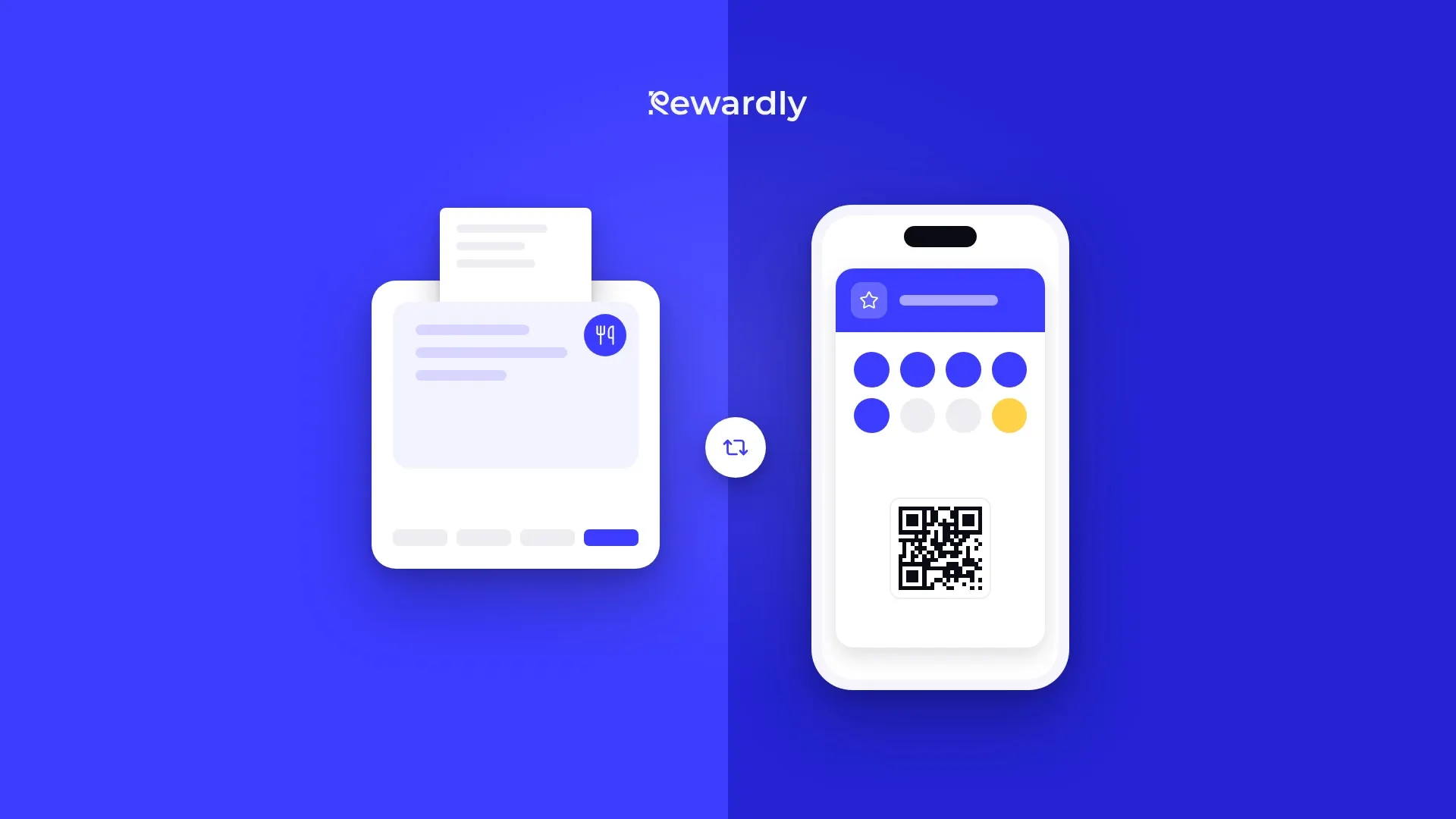
If your business runs on the Papaya POS cash register, you can connect your Rewardly loyalty program directly to it. The cashier scans the customer's card and the till applies the discount, reward or credit on its own. Once the bill is paid, the customer gets their stamps, points or cashback.
How the integration works at checkout
The customer has a Rewardly card in Apple Wallet or Google Wallet. At checkout they show it and the cashier scans its QR code in Papaya POS.
- Papaya POS sends Rewardly the customer's card and the whole open bill.
- Based on your program rules, Rewardly returns the discounts and a short message for the cashier.
- The till applies the discounts to the bill.
- Once the bill is paid, Papaya POS sends the order to Rewardly. Rewardly adds the stamps, points or cashback and confirms the rewards that were used.
- The card on the customer's phone updates with the new balance.
Points and credit are not stored in Papaya POS. They stay in Rewardly, and the till reads the current state at every scan.
If Rewardly does not answer, the till gets an empty offer with a "temporarily unavailable" message, and you handle the bill as usual.

How the customer gets a card
The customer scans the QR code at your counter or opens your link, fills in a short form and saves the card to Apple Wallet (iPhone) or Google Wallet (Android). No app needed. The card has to exist before paying, because the till does not create new members.
What staff see at the till
The message for the cashier shows the customer's first name, their balances and what this purchase adds, for example "stamps 7 (+1)". It also lists the rewards the customer can use and the discounts applied to the bill. The message can be in Slovak, Czech or English.
The customer's tier, for example VIP, is not shown at the Papaya POS till.
Which rewards work at the till
- Stamp card: the stamp is added once the bill is paid. It can be tied to a visit or to a specific product from your catalog, for example coffee.
- Points card: points come from the purchase amount, 1 to 50 points per euro, as you set it. Customers spend points on rewards.
- Free product: the reward is taken off the right line of the bill. If the line has several units, one of them is free.
- Member discount: a percentage discount is applied to the whole bill every time the card is scanned.
- Cashback and credit: they pay part of the bill, up to its total.
For credit and cashback you choose one of two modes. By default it is spent automatically. If you want it spent only when the customer asks, you switch automatic use off and pick a product, for example "REDEEM REWARD". Credit is then released only when the cashier rings up that product.
How to set up the connection
You set up the connection yourself in the Rewardly settings, under integrations. Have your Papaya POS admin access ready.
- In Rewardly, enter the location name, the Papaya POS API address and the access token from the Papaya POS admin.
- Rewardly checks the token and shows three values: two URLs and a token.
- In the Papaya POS admin, open the webhook settings and add a webhook of type LOYALTY. Enter the first URL (rewards), the second URL (webhook) and the token.
- Rewardly reads the product catalog from Papaya POS, so rules and rewards can be tied to specific products.
- Set up your loyalty program and scan the first card.
The catalog then refreshes every night and on demand. Prices are read in euros. Rewardly writes nothing into Papaya POS except a member card for each new Rewardly card.
Several locations
Each location is connected separately, with its own API address, its own token and its own three values. The connection creates the location in Rewardly automatically, or you assign it to an existing one. Purchases are recorded at the right location, and all locations work with the same loyalty program.
What to check before you start
- Plan: the POS integration is included in the Advanced plan and higher.
- Scan before the bill is closed: the card has to be scanned before payment, otherwise the purchase is not recorded.
- Cancellations: a cancelled order in Papaya POS does not reverse loyalty values. In that case you correct the customer's balance by hand in their detail in Rewardly.
- Existing cards: if you have customers with cards issued before the connection, check with us before you start how the till will recognise them.
- New token: when you create a new token in Rewardly, the old one stops working at once and the new one has to be entered in Papaya POS.
Without the integration, or next to it
Rewardly also works without a POS connection. Staff then scan the card in the Rewardly app on a phone or tablet, tap to add a stamp or type the purchase amount for points. The phone or tablet needs an internet connection. The Papaya POS integration moves that work into the till.
Messages to customers
On the Advanced plan and higher you can send messages to card holders through Apple Wallet and Google Wallet. You can switch on a welcome message and a birthday message, or a message that goes out after a visit or a purchase. You can also build a reminder that goes out if a customer has not come back within a number of days you choose.
Who the integration suits
- Cafés and bistros on Papaya POS with a stamp card, points or cashback.
- Businesses that want to give a free product right on the bill, for example a coffee.
- Small chains with several Papaya POS locations.
You can find an overview of the connection on the Papaya POS integration page and all supported systems on the integrations page. If you are not sure how to set up your program, get in touch.
Connect Papaya POS to your loyalty program. Try Rewardly for €0
No upfront payment, the POS integration is included in the Advanced plan and higher.