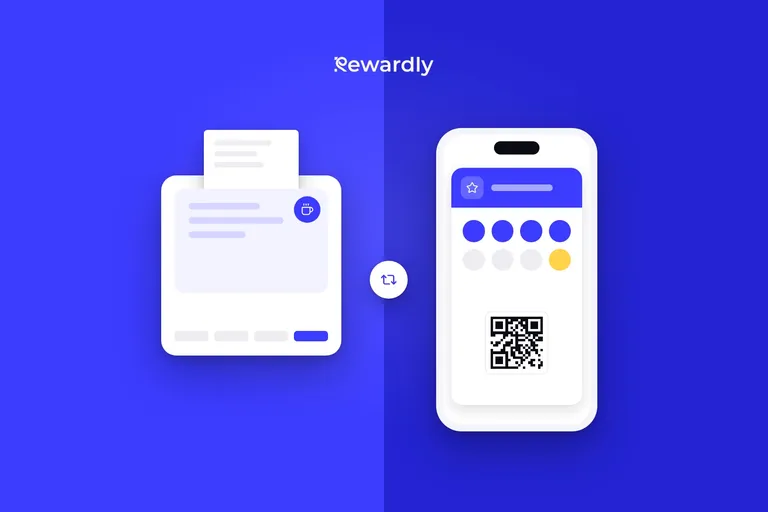
How a wallet loyalty card works for the customer: from scan to free reward
What the customer sees: scan a QR code, save the card to Apple Wallet or Google Wallet, collect stamps, get the reward and a message on the lock screen.


A wallet loyalty card is a stamp or points card that lives in Apple Wallet on an iPhone or Google Wallet on Android. The customer scans a QR code at your counter, fills in a short form and saves the card, in about 10 seconds and with nothing to download. On later visits staff scan the card and the new stamp shows up on it. This guide follows one customer from the first scan to the reward and to deleting the card, on both phones.
Why a wallet card and not your own app is covered in loyalty without an app that drives revenue. How to launch one in your shop is in how to launch a loyalty card without an app. Here we look at the customer's screen.
The same card on iPhone and on Android
The path is the same. The wallet and a few details differ:
Moment | iPhone | Android |
|---|---|---|
Button on the join page | Apple Wallet only | Google Wallet only |
Saving the card | The card downloads and Wallet opens | Google Wallet opens from a ready made save link |
Where the card lives | In Apple Wallet | In Google Wallet |
Card near your shop | Wallet can show it on the lock screen | Google Wallet can send a notification |
The customer does not pick a wallet. The page shows only the button for their phone.
How to add a loyalty card to Apple Wallet on iPhone
- Scan the QR code with your camera or open the link from the business.
- On the page that opens, fill in the short form and tap the Apple Wallet button.
- Your iPhone shows a preview of the card. Tap Add.
- Done. The card is in the Wallet app.
Android: Google Wallet
- Scan the QR code with your camera or open the link from the business.
- Fill in the short form and tap the Google Wallet button.
- A preview of the card opens in Google Wallet. Confirm to save it.
- Done. The card is in Google Wallet.
Step by step, from scan to reward
- Scan. The customer scans the QR code at your counter or opens a link you send. The join page opens in the browser. On a desktop it shows only a QR code to scan with a phone, so the card cannot be added from a computer.
- Form. It is short. First name and email are recommended, not required, and a customer can add the card without filling it in. Ask for date of birth only if you will send birthday messages. What to ask and what to leave out is in how to get customers to join your loyalty program.
- Save. The customer taps the button for their wallet. No account and no password.
- The card in the wallet. It sits where they keep boarding passes and payment cards, not among app icons. You can preview how your card will look in the free loyalty card maker. With Advanced and a welcome message switched on, a message arrives as soon as the card is added.
- The first purchase. The customer opens the card, which shows a QR code. Staff scan it in the scanner, which runs in the browser on a phone or tablet, and add the stamp. How that works at the till is in scanning a loyalty card at the till.
- The stamp on the card. After every stamp or purchase the card updates in both wallets. The customer taps nothing and refreshes nothing.
- The reward. When staff add the last stamp, the reward is ready at once and the card starts counting again. At the next visit staff confirm the reward in the scanner, or a connected till takes it off the bill.
Example: one customer, one card
Illustrative, replace it with your own card. A café has a 10 stamp card, the reward is a free coffee, and a stamp is given per item (the stamp per product rule, see stamp per visit or stamp per product).
- First visit: the customer joins and gets 1 stamp. 1 of 10.
- Second and third visits: one coffee each, 3 in total.
- Fourth visit: three coffees for colleagues, 3 stamps, 6 in total.
- Fifth visit: two coffees, 8 in total.
- Sixth visit: four coffees for the whole office, 8 + 4 = 12 stamps. The card holds 10, so the reward is ready at once and 12 − 10 = 2 stamps carry over.
The customer gets the reward and the same card already shows 2 stamps of the next round. No new card is created.
A message on the lock screen
From Advanced you can send customers push messages. They show up as a notification on the lock screen. Rewardly measures a 90% read rate on wallet messages. Only customers who agreed to marketing messages receive them.
The card can also notify near your shop. Apple Wallet can show the card on the lock screen when the customer is near one of up to ten addresses, and the system decides when. Since October 2025 Google Wallet can send a notification near one of up to ten addresses, and Google decides how close. Limits and setup are in the post on Apple Wallet vs a custom loyalty app.
Deleting the card and what can go wrong
The customer deletes the card in the wallet like any other card or pass. They need no password and no icon is left on the phone. If they later say their count is off, you can correct the stamps or points on their record in the dashboard.
Two things to say up front:
- A phone without Apple Wallet or Google Wallet cannot save the card. Joining always ends in one of them, and there is no web card as a fallback.
- Staff need internet. Without a connection the stamp is not recorded and there is no offline queue. When the connection is back, scan the card again.
FAQ
Does the customer need an app?
No. The card lives in Apple Wallet or Google Wallet, which the phone already has. The customer scans the QR code, fills in a short form and taps to save.
What if the phone has no Apple or Google Wallet?
Then the card cannot be saved. Rewardly has no fallback for such a phone.
Does the card update by itself after a stamp?
Yes. Stamps or points change on the card after a visit, with nothing for the customer to do.
Can I send a message to the card?
Yes, from Advanced. It shows as a notification on the lock screen for customers who agreed to marketing messages.
Create a loyalty card customers add in 10 seconds. Try Rewardly for €0
No upfront payment, 14 days free.