
WiFi QR code: guests join without asking for the password
Make a free WiFi QR code. Guests scan the poster and join without typing a password. Works with WPA, WEP and hidden networks, A5 or A4 poster with your logo.

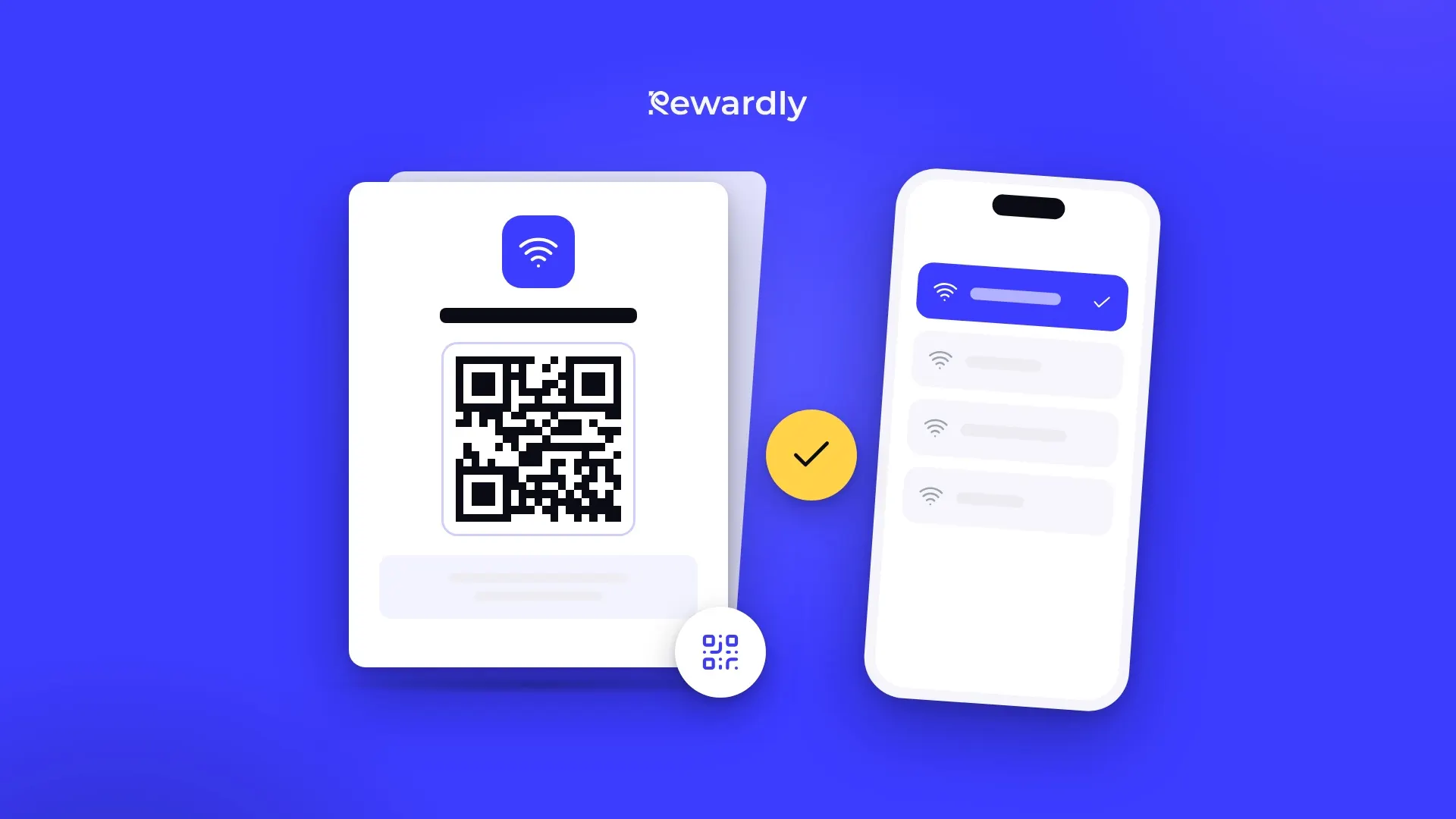
"What's the WiFi password?" Staff in a café or restaurant hear it several times a day. Then they spell it out, the guest types it, gets a capital letter wrong and asks again. The fix is simple: a QR code the guest scans with the camera, and the phone joins by itself.
That is why we built a free WiFi QR code poster. Type your network name and password and print a poster for the table.
How a WiFi QR code works
The QR code holds the network name, the security type and the password in a format every recent phone understands. The guest opens the camera, points it at the poster and confirms the connection.
- iPhones on iOS 11 or later and Android phones on Android 10 or later do it straight from the camera.
- Older Android phones need a QR app or Google Lens.
The code has no expiry date and no web page sits between you and the guest. It works until you change the network name or password. Then you make a new poster in the maker.
What you fill in
- Network name (SSID): exactly as it appears in the network list, including capitals and spaces.
- Security: WPA, WEP or No password. Most networks use WPA, which also covers WPA2 and WPA3.
- Password: capitals count. The maker warns you if the password does not match the length the chosen security allows. For WPA that is 8 to 63 characters.
- Hidden network: if your network does not show in the list, switch this on so phones can still join it.
You can also print the network name and password under the code. That helps guests with older phones who join by hand.

A poster with your name on it
Besides the code, you set the look of the poster:
- Business name and logo (PNG, JPG, SVG or WebP).
- Headline and second line, for example "Free WiFi" and "Point your phone camera at the code to join."
- Colour from the swatches or as an exact hex code.
- Size: A5 centred on an A4 sheet with crop marks, or a full A4 page.
Print it with the "Print poster" button, one poster per A4 sheet. In the print dialog choose 100% scale and no margins. Or download it as a PNG and send it to a print shop. A small "Powered by Rewardly" note sits at the foot of the poster.
Where to put it
Where people sit down and reach for their phone: on the table, at the counter, by the waiting chairs. A table tent or a small frame works better than a poster on the far wall, because the code has to be close enough to scan without standing up.
The password belongs on a guest network
Anything printed on a poster is public. Anyone who scans it knows the password. So:
- Put guests on a separate guest network, not the one your till, card terminal or office computer uses. Most routers have a guest network setting.
- When you change the password, print a new poster the same day.
The maker itself does not send the password anywhere. The QR code is drawn in your browser, and the password is saved neither by us nor in your browser. You type it again on your next visit. The maker needs no account, and it is free. You only enter your email once, before your first download or print.
WiFi keeps guests seated, a loyalty card brings them back
Free WiFi keeps a guest at the table a little longer. To bring them back next week, they need a reason to return. Put the WiFi poster next to your loyalty card QR code. The moment a guest takes out their phone for the WiFi, they can add the card too:
- They add the card to Apple Wallet or Google Wallet from a QR code in about 10 seconds, without downloading an app.
- Your staff add a stamp in the Rewardly app on a phone.
- On the Advanced plan and higher you can send guests notifications on their phone, such as a welcome after they add the card.
Our Google review QR code fits on the same table. And if you want to start with a paper card, try the free loyalty card maker.
Give your guests a reason to come back. Try Rewardly for €0
No upfront payment, set up in 2 minutes.