Google review QR code: a free counter poster in a few minutes
Make a free Google review QR code: copy the link from your Business Profile, design an A5 or A4 poster and put it at your counter. No account, no signup.

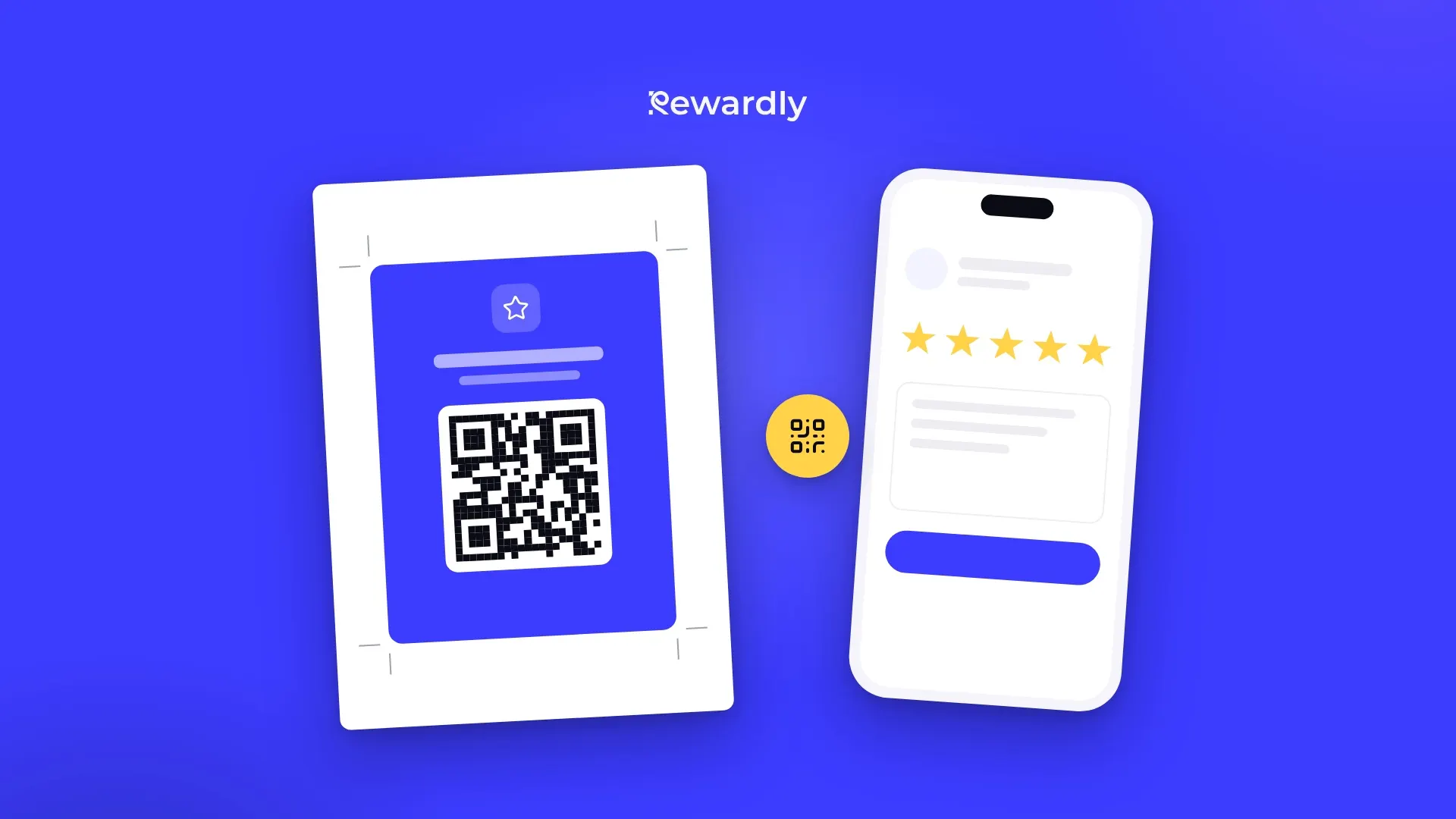
A happy customer would often leave a review, but first they must find you on Google, scroll to the reviews and find the rating button. Most people give up. A QR code at the counter cuts it down to one scan. So we built the Google review QR code tool: paste your review link and print a finished poster.
Step 1: copy your review link
You will find the link in your Google Business Profile:
- While signed in, search for your business name on Google, or open the Business Profile Manager.
- On the home panel, press "Get more reviews".
- Copy the link. It starts with g.page or search.google.com.
Why this link and not the address from Google Maps? The review link opens the form with the stars straight away. A Maps link only opens your listing, and the customer still has to look for the form. The tool accepts Maps links too, but the review link works better.
Step 2: design the poster
In the tool you paste the link and fill in:
- Business name and logo, so customers know it is you.
- A headline of up to 40 characters, for example "Enjoyed your visit?"
- A second line of up to 90 characters, for example "Leave us a review on Google. It takes 30 seconds."
- A colour: one of ten ready made themes or your own, for example the colour of your logo.
Under the QR code sits the prompt "Scan to leave a review". Until you paste your link, the poster shows a sample code. So do one check before printing: scan the QR code on your screen with your own phone and make sure it opens the review form for your business.

Step 3: print or download
You can choose between two sizes:
- A5 centred on an A4 sheet, with crop marks to trim along. It fits a counter stand or a frame.
- A4 full page for a wall or a door.
When printing, choose 100 % scale and no margins. If you want the poster printed at a print shop or put on a table stand, download it as a PNG at print resolution.
Where to put the poster
Where the customer has just had a good experience and is waiting anyway:
- at the till or the pickup counter,
- on the table in a café or restaurant,
- by the mirror in a hair or beauty salon,
- by the door, to catch people on their way out.
Place the poster at eye level, with nothing in front of it, and only one per spot. If you also have the QR code for your loyalty card at the counter, put the two in different places or label clearly what each code does. The customer should never have to guess which one to scan.
What not to put on the poster
The QR code does the work, the text only has to make it feel easy. "It takes 30 seconds" is honest and specific. But never offer anything in return for a review: no discount, no stamp, no free coffee. Google explicitly bans such incentives and can remove reviews collected with a reward.
In the same way, do not ask only your happy customers. Ask everyone, at every visit, with the same poster. How to ask your regulars for reviews and how to reply to the bad ones too is covered in How to get Google reviews from your regulars.
Validity, privacy and price
The QR code holds your review link directly, with no redirect address in between. So it works for as long as your Business Profile exists, nothing needs renewing and nothing is tracked. Some QR code generators send the customer through their own address, and the code stops working when the service changes or starts charging. That cannot happen here.
The tool is free, with no account and no email. It runs in your browser, and the link you paste is used only to draw the QR code. It is not sent anywhere.
Reviews bring new customers, loyalty brings them back
Reviews help people who do not know you yet choose you. To come back after the first visit, they need a reason. A loyalty card gives them one.
With Rewardly, customers add your loyalty card to Apple Wallet or Google Wallet by scanning a QR code at the counter, with no app to download. On the Advanced plan and higher, Rewardly can also send them a review request on their phone after a visit, so you do not have to rely on the poster alone. You can design a printable card in our second free tool too, the loyalty card maker.
Add a loyalty card to your reviews. Try Rewardly for €0
No upfront payment, customers add the card to Apple Wallet or Google Wallet.